The components panel makes AppVideoStudio feel closer to a visual CMS for launch videos and product demos than a general animation tool. You pick from scene-ready building blocks, place them into the composition, and adjust a focused set of controls that keep the work moving toward a finished scene.
That constraint is the point. Most teams making launch videos do not need infinite expressive power. They need a system that makes it easy to stage a product, add supporting motion, and get to a strong result without wandering through hundreds of low-level decisions. The panel is what makes that mode possible.
Browse Components Without Leaving the Scene
Generic animation software usually starts from an empty space and asks you to build motion from primitive tools. AppVideoStudio starts further downstream. The panel is built around the recurring parts of product marketing work, so you can browse categories, search for a pattern, and drop in something that already fits software presentation.
That makes the workflow feel editorial instead of illustrative. You are not drawing every element from scratch. You are assembling a scene from known content types that already understand the job: framing a screen, staging a reveal, supporting narration, or pushing the viewer toward a call to action.
- Imported assets and canvas presets are visible before you even start browsing categories.
- Search narrows the library fast when you already know the kind of product shot you want to build.
- Category counts make the available visual vocabulary obvious without forcing you through a deep asset tree.
- The preview stays central, so component choices are made against the actual scene instead of a blank workspace.
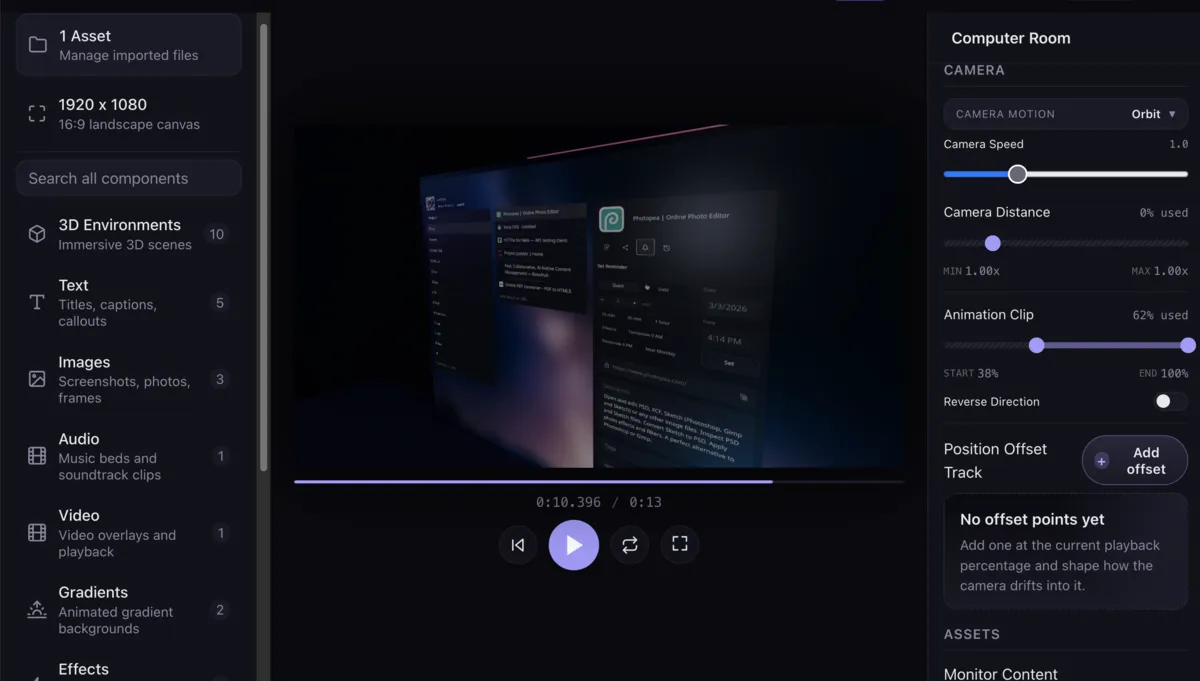
This is the main product choice: AppVideoStudio narrows the configuration surface on purpose. Instead of exposing every animation possibility, the panel exposes the smaller set of decisions that actually help teams finish polished product demonstrations.
Inspector Controls Match the Selected Component
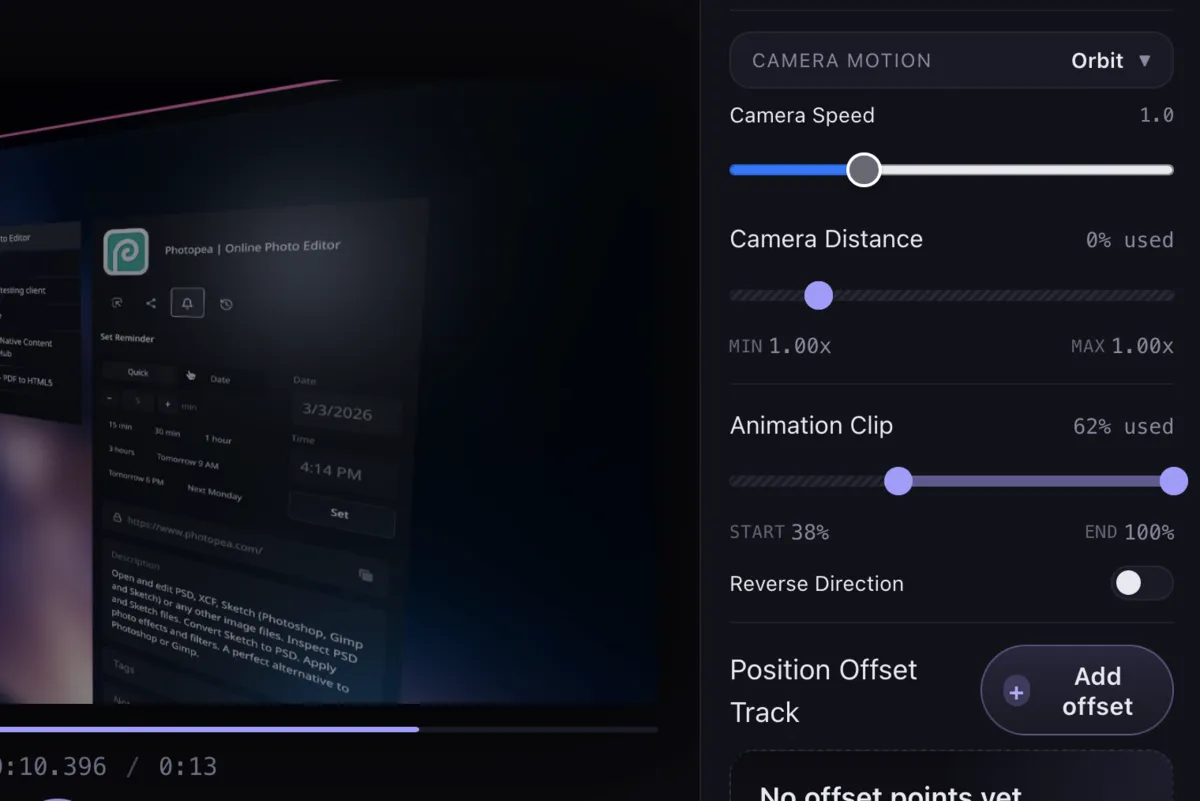
The right side of the panel is where the component stops being a generic block and becomes part of a specific scene. Different selections expose the controls that matter for that piece, whether that is timing, fade behavior, or camera movement inside a 3D environment. That keeps the interface dense without making every component feel overloaded by controls that do not help ship the video.
In a traditional motion tool, that inspector can become a wall of options. Here it stays closer to a publishing form. Choose the component, adjust the few settings that shape how it behaves, and move on. The panel keeps the product opinionated so the work stays fast.
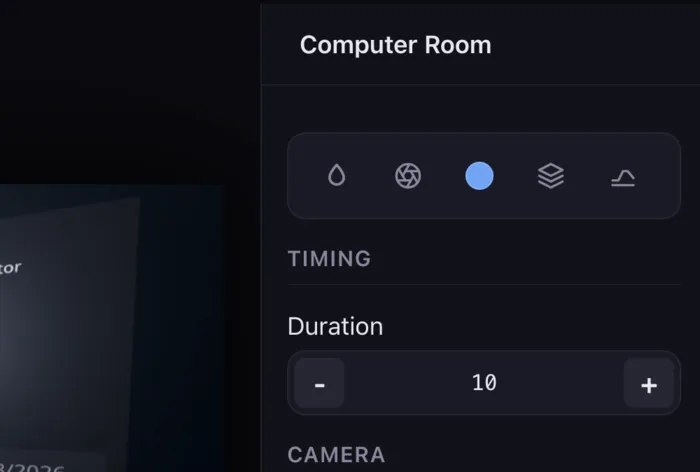
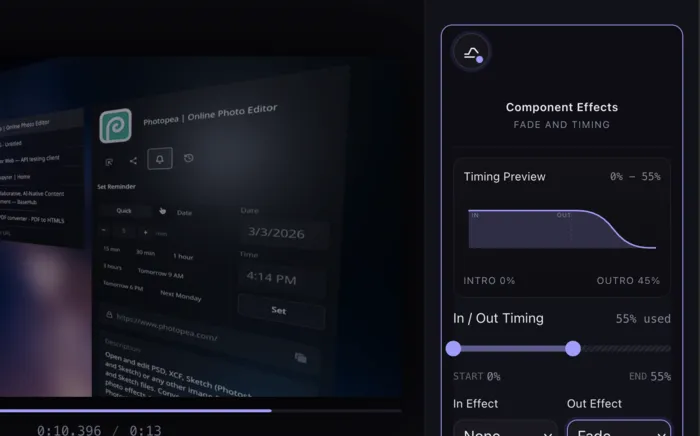
The timing controls are especially important for product videos because most motion problems are not about whether an effect exists. They are about whether it enters too early, exits too late, or lingers long enough to support the story. The panel keeps those adjustments close to the live frame and prioritizes the controls that matter most when a product team is shaping a launch video.
Faster Iteration for Real Product Work
Product videos rarely get built in one pass. Screens change, copy changes, and the pacing gets revised over and over. A good panel reduces the cost of those revisions because it keeps browsing, inspection, and playback connected. You do not waste time hunting for a control or reorienting yourself after every small change.
That is what these screenshots capture best: the components panel is not just a list of reusable pieces. It is the interface layer that turns AppVideoStudio into a visual CMS for launch content, where the goal is a fast path to a clear, persuasive product story without losing the ability to explore and experiment.